
Payroll FAQs
Find answers to common CrewCard payroll questions about STP, direct payments, payslips, YTD amendments, superannuation, SMSFs and reimbursements.

CrewCard Payroll Help
Guidance for common payroll tasks including STP, direct payments, payslips, superannuation and reimbursements.
What to do when the crew haven’t completed their STP details?
ATO will reject STP submissions when there are incomplete details. Admin users should contact crew and advise them to update their details via the Crew Portal.
How to add Direct Payments?
Direct payments are payments made to the crew. They can also be used as a deduction, depending on the type of Direct Payment you want to process.
- Go to Direct Payments from the Central Navigation Bar.
- Click Add Payment.
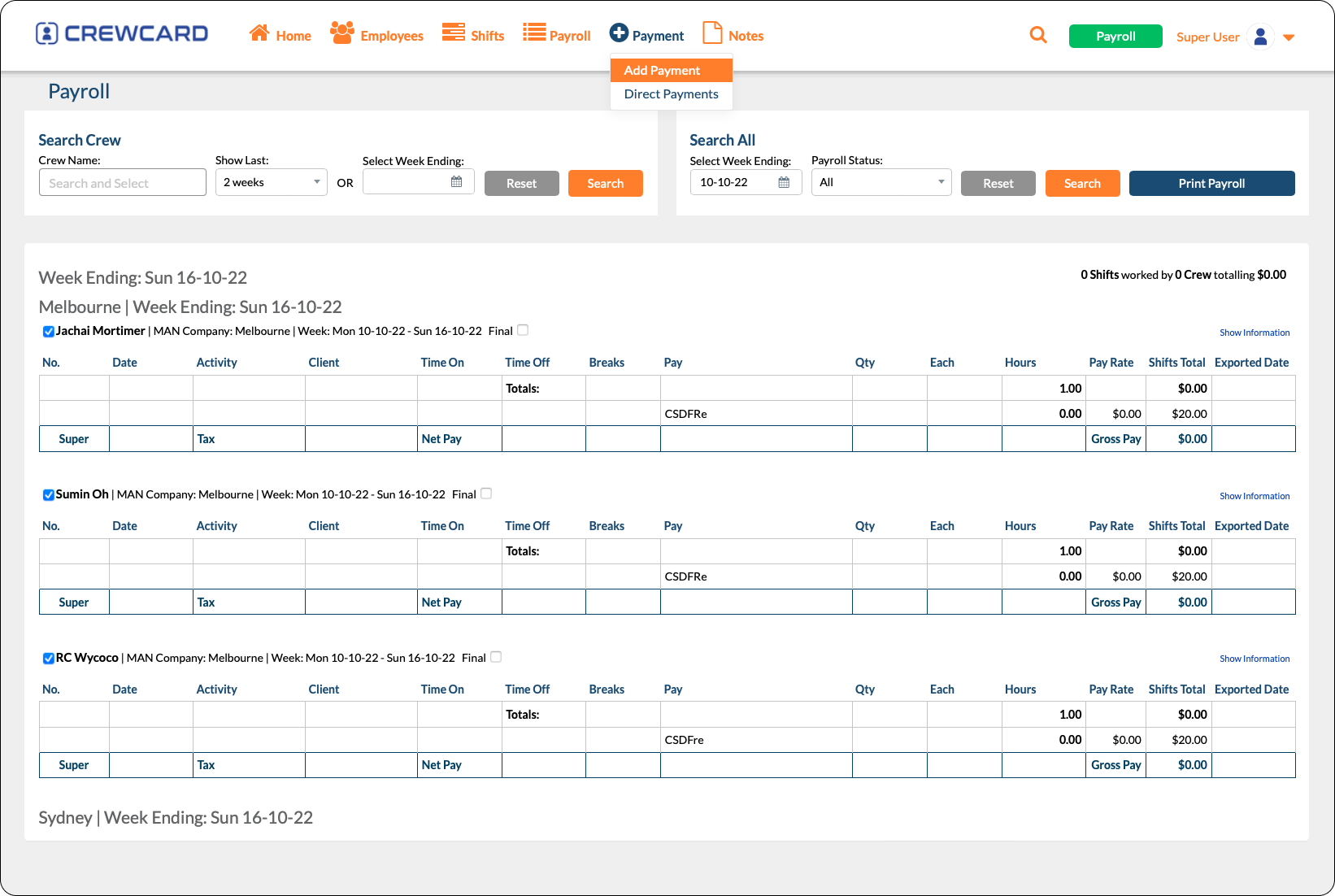
The Add Payment window will appear.
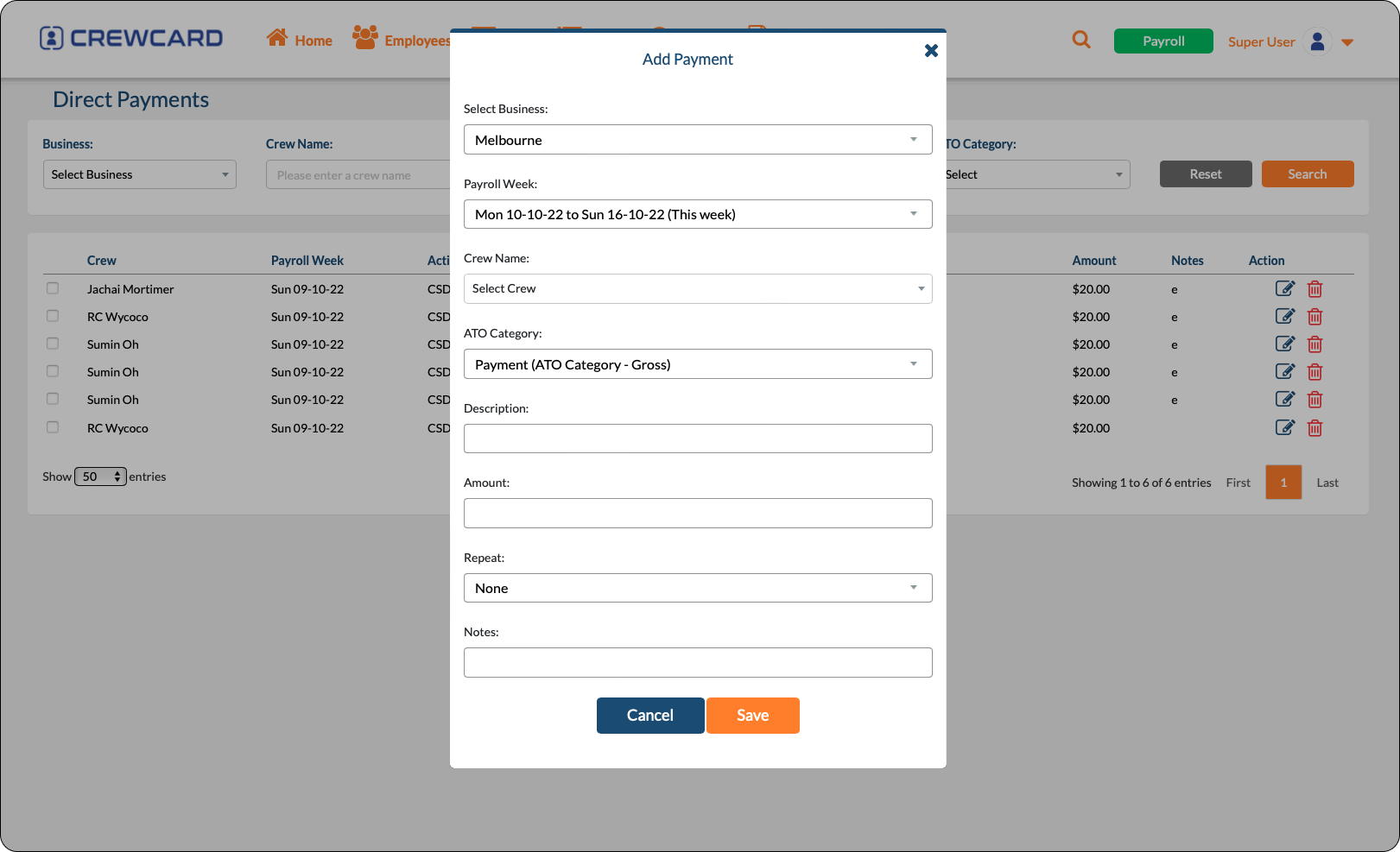
Payment (ATO Category – Gross)
When selected, the gross pay of the crew member will be increased by the entered amount.
Deduction (ATO Category – Payment Correction)
Use this if you need to correct the crew member’s gross pay. For example, if the crew member was overpaid in the previous payroll, this category can be used to deduct the amount from gross pay.
Bonus (ATO Category – Bonus)
Bonuses are usually made to an employee in recognition of performance or services and may not be related to a particular period of work performed.
Child Support Deduction (ATO Category – Deduction)
This is a deduction made under a notice as per section 45 of the Child Support (Registration and Collection) Act 1988. This is a fixed dollar amount each pay period. Deductions made under section 45 are subject to a Protected Earnings Amount (PEA).
Child Support Garnishee (ATO Category – Deduction)
This deduction is made under a notice as per section 72A of the Child Support (Registration and Collection) Act 1988. It may be a percentage of a payee’s taxable gross income, a lump sum or a fixed amount each pay until the debt is satisfied.
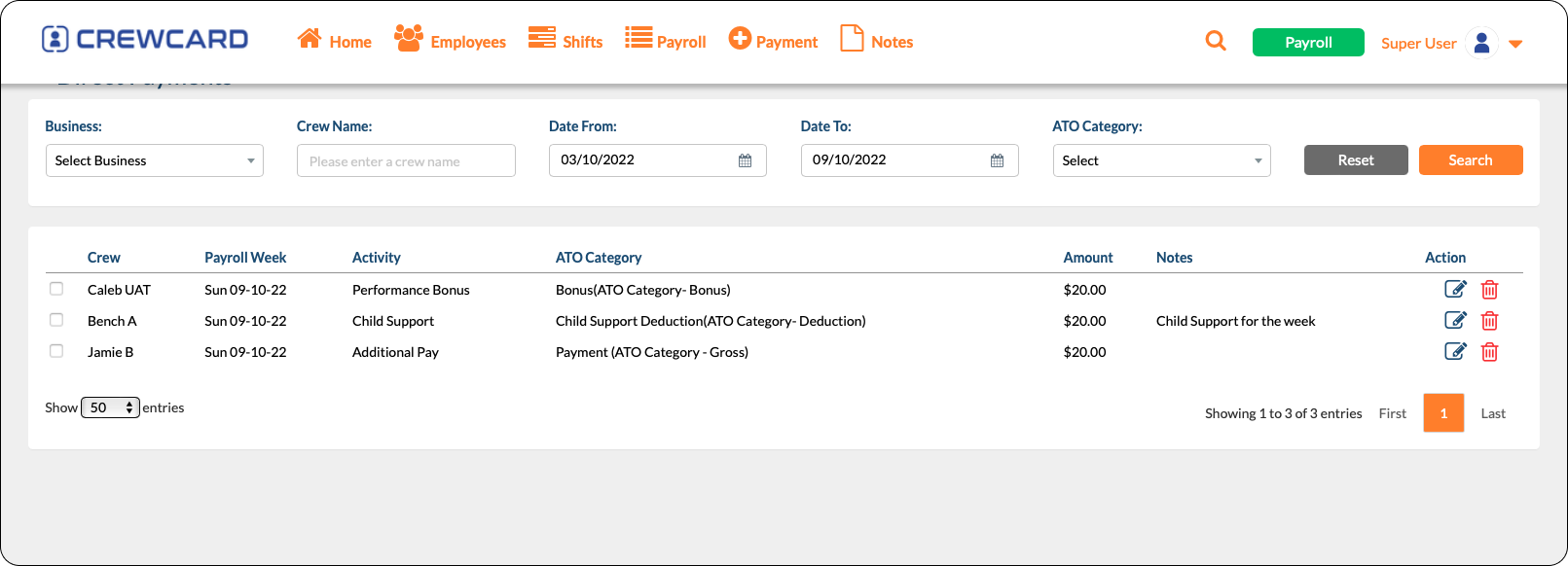
When all details are complete, click SAVE. Your Direct Payment will then be listed on the page.
Where to find STP warnings?
How to resend payslips?
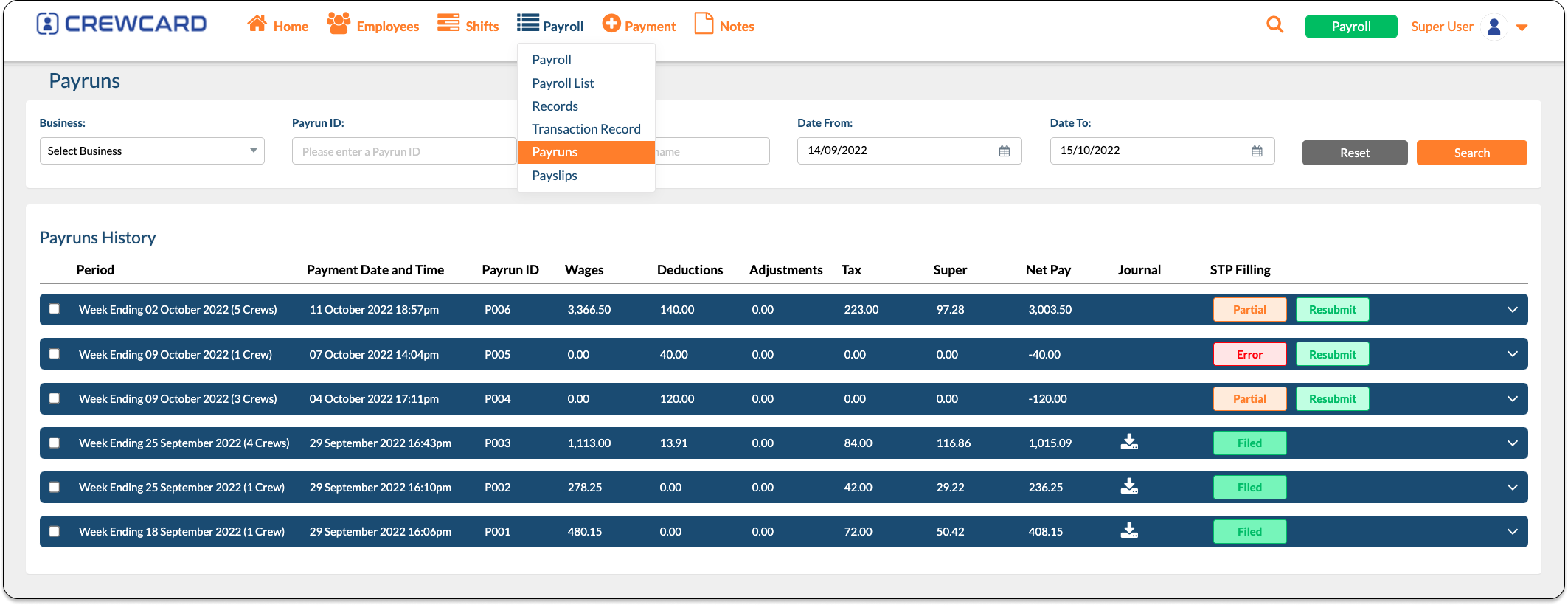
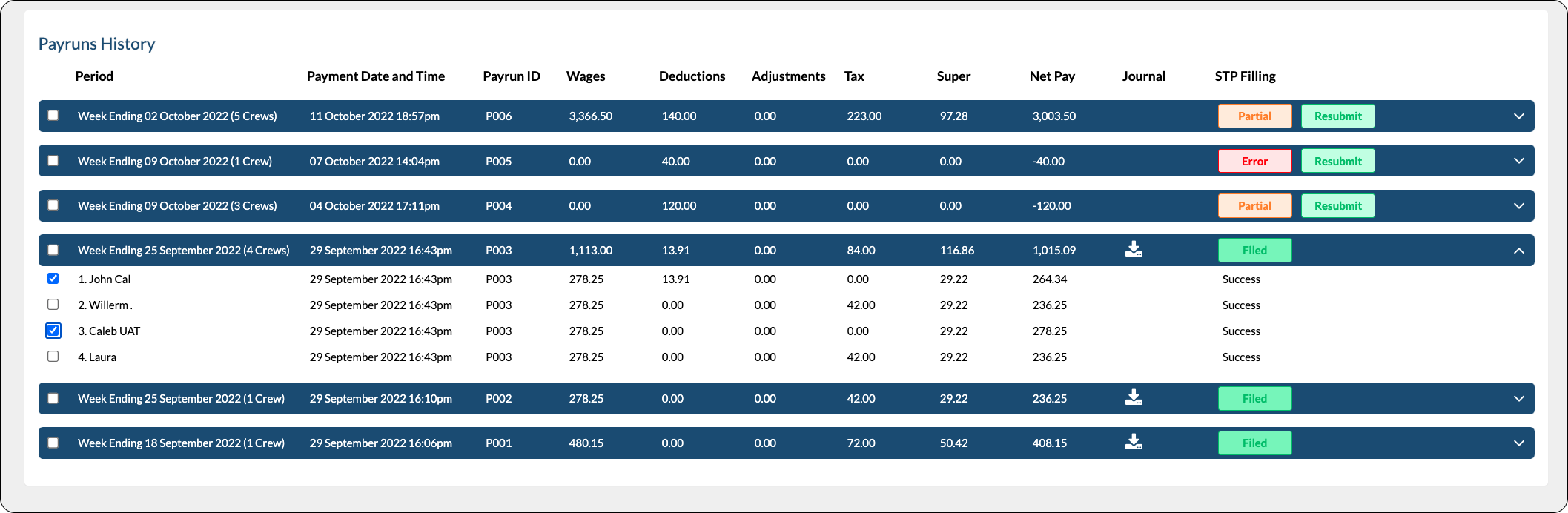
Payslips can be sent during the processing of payments in the Payment Wizard. If you need to resend them, use the Payruns page.
- Go to the Payruns page.
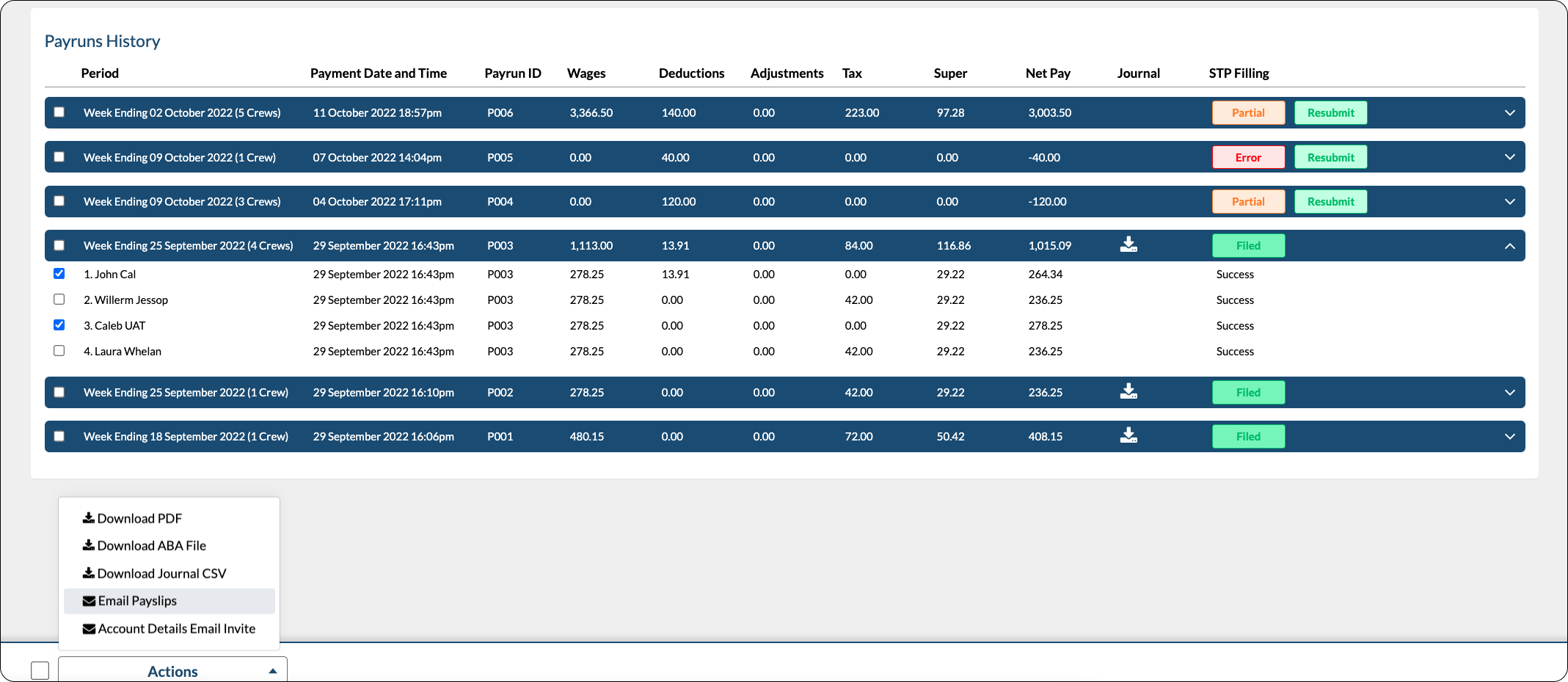
- Tick the checkbox for the crew members whose payslips you want to resend.
- In the footer functions, click Send Payslip.
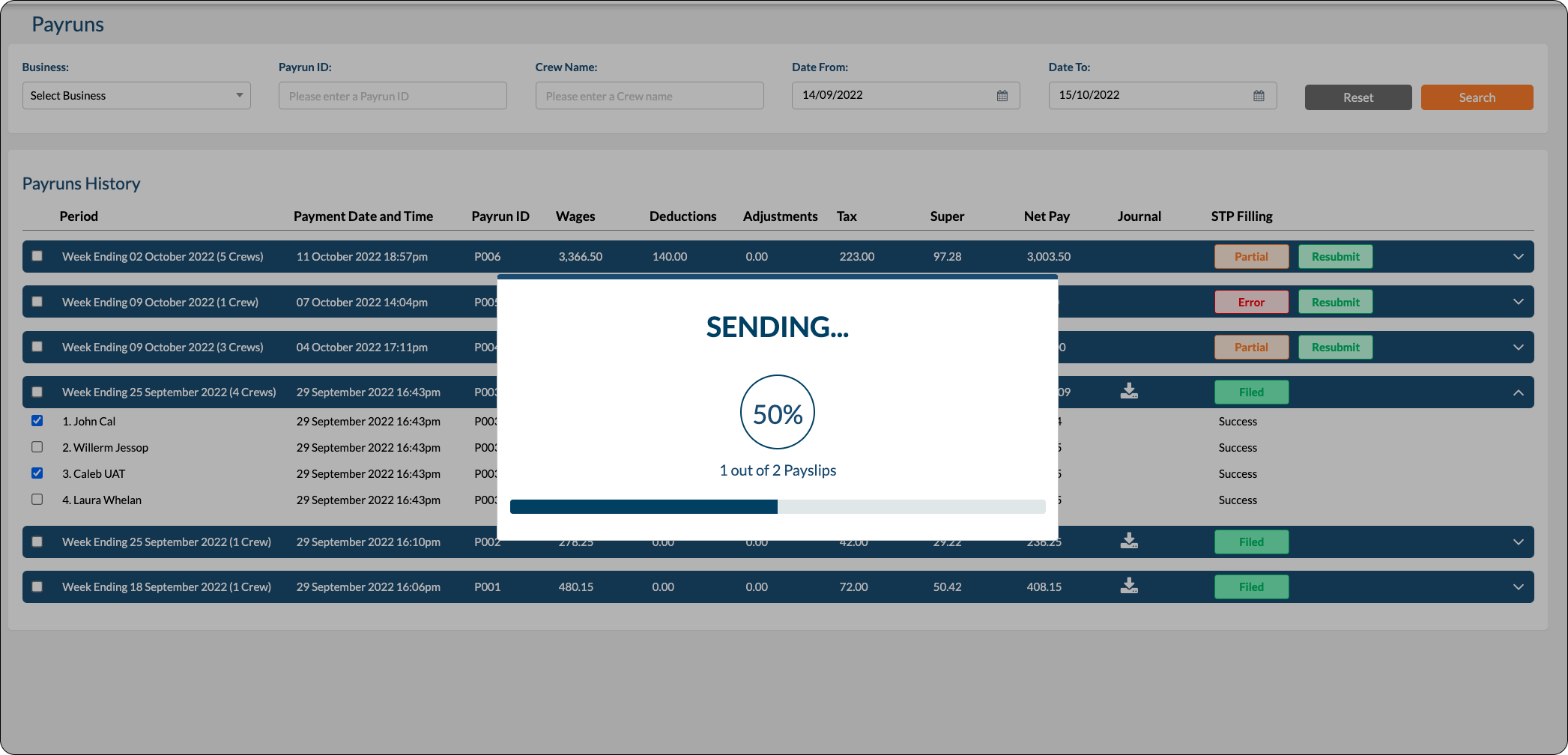
- The payslips will be sent to the email addresses of the selected crew members.
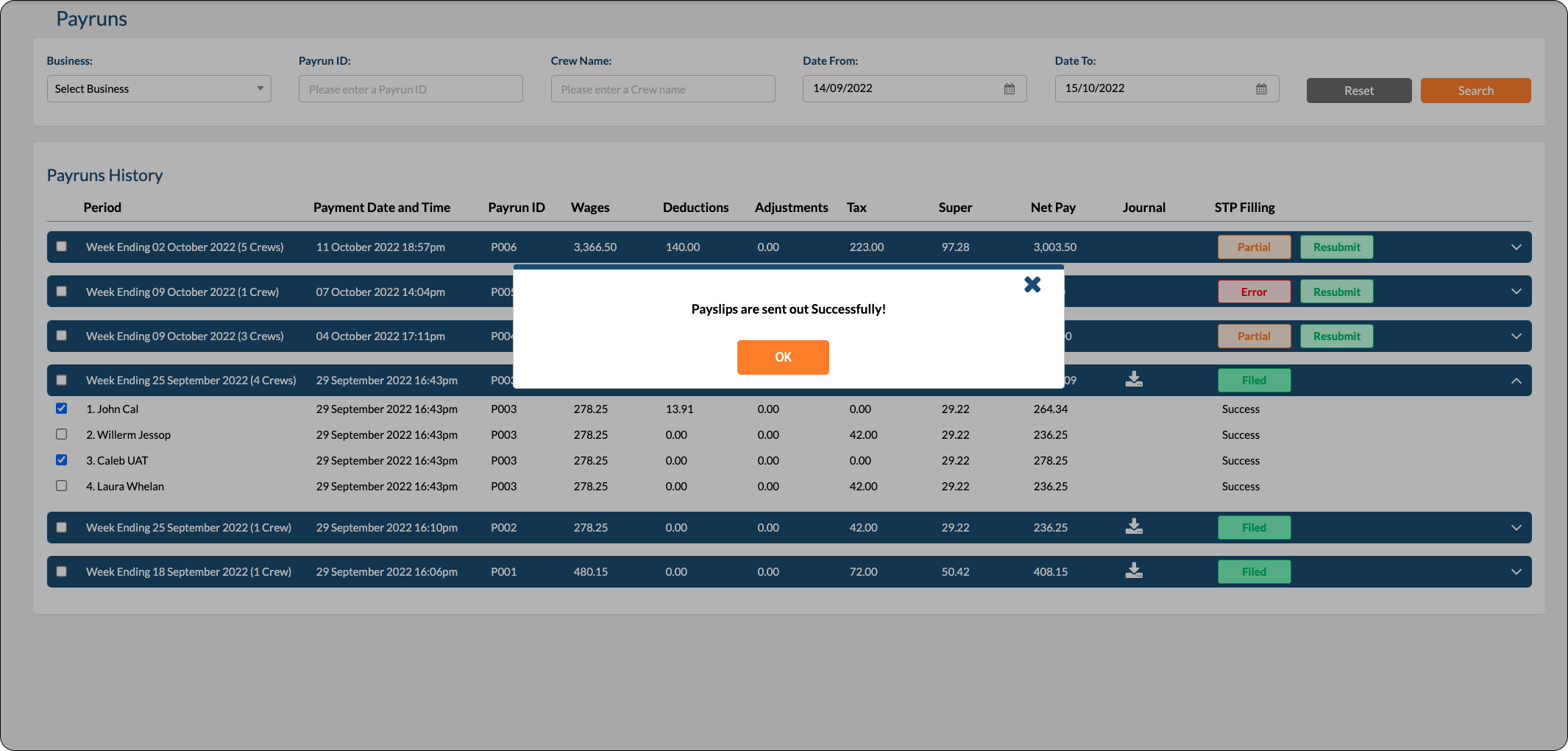
- A confirmation message will appear after the payslips have been sent successfully.
How to re-report updates made to crew payroll?
If there are changes in the YTD values of a crew member, Payroll Users need to use the YTD Amendment page to lodge a report to the ATO.
How to produce Superannuation reports using the Activity Summary?
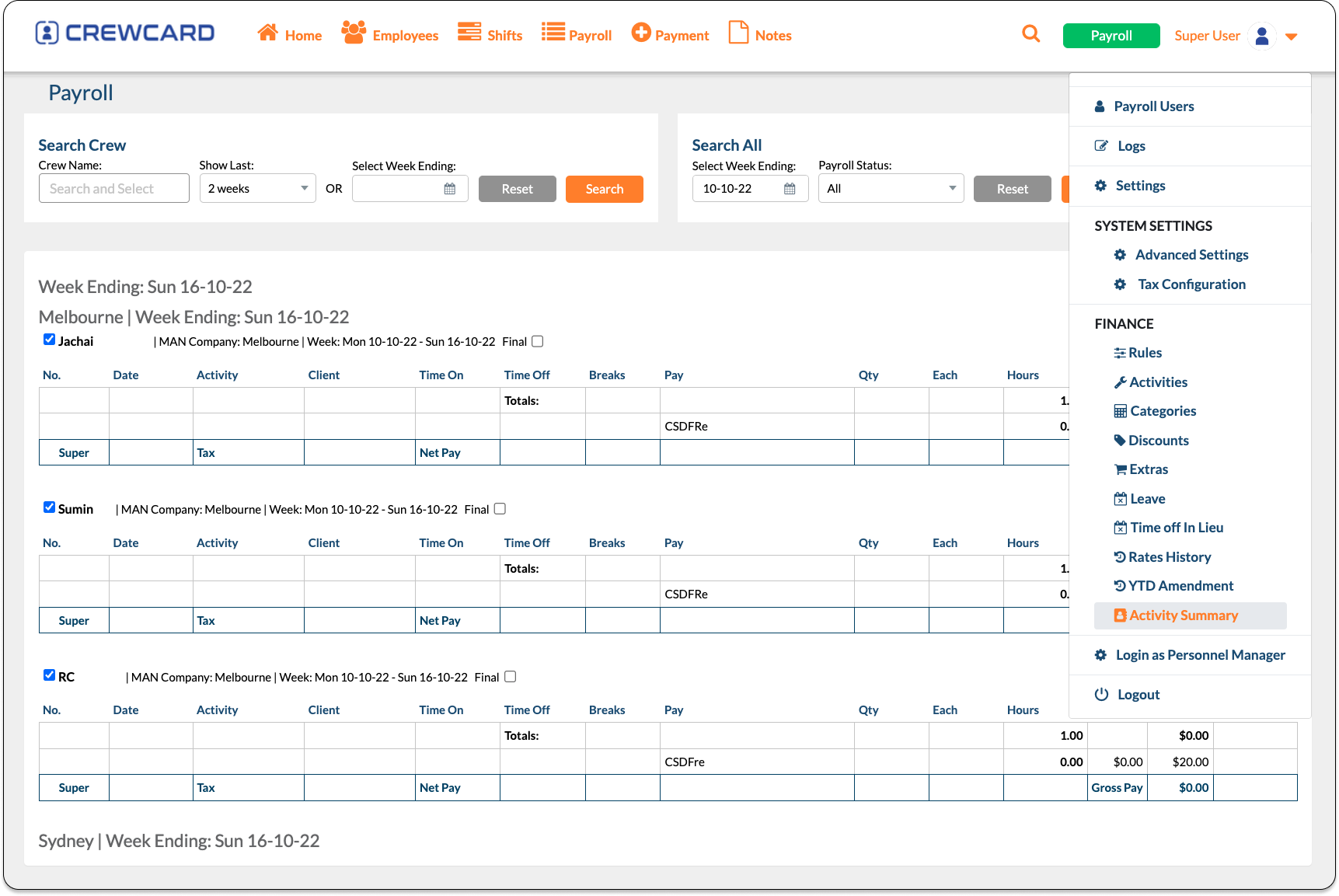
- Go to Activity Summary.
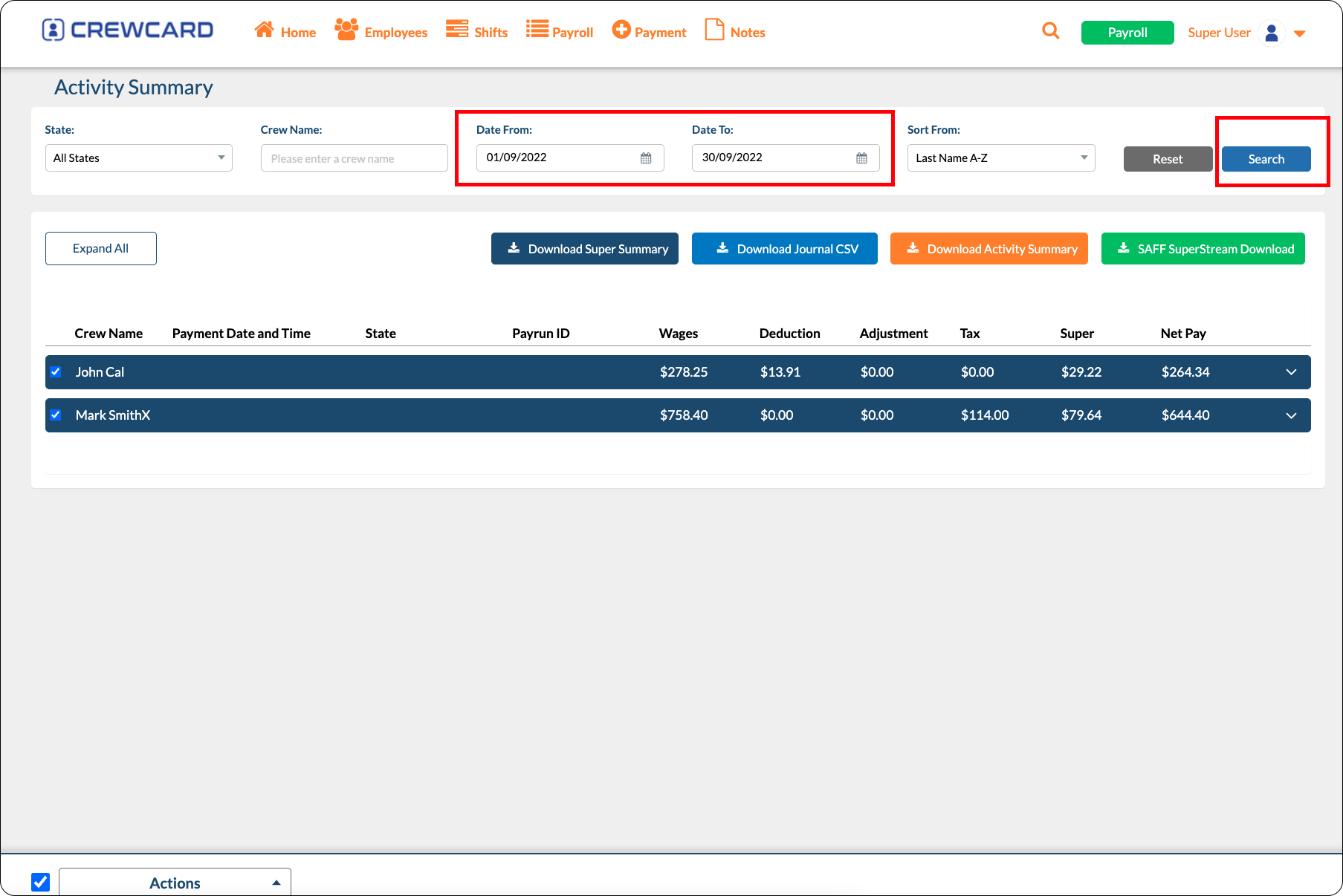
- Enter the date range for the Superannuation Report.
- Click Search.
- The names of crew with Superannuation for the selected date range will appear.
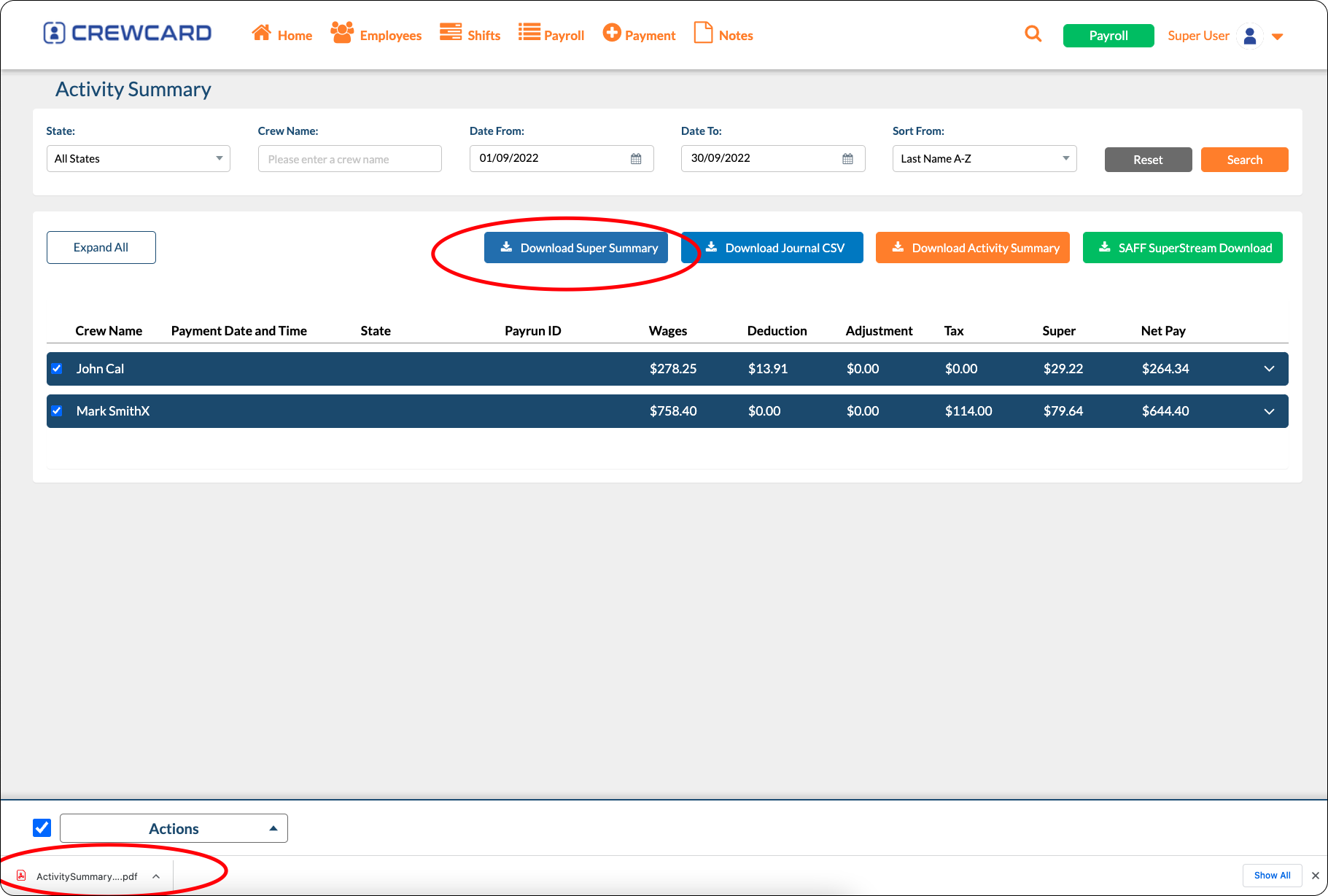
- Click Download Super Summary.
- The PDF file will be downloaded to your device.
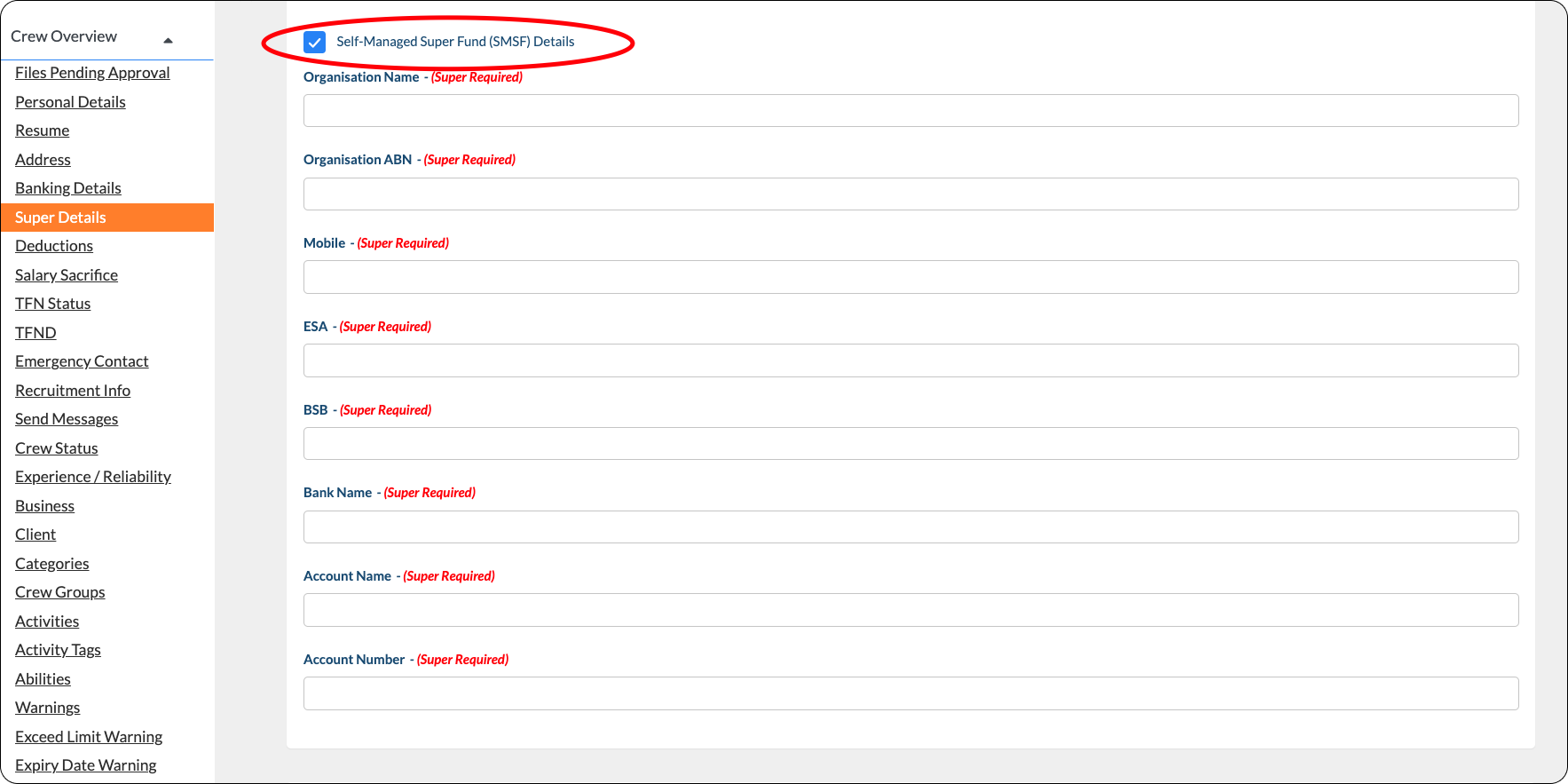
How to add Self-Managed Super Funds (SMSF)?
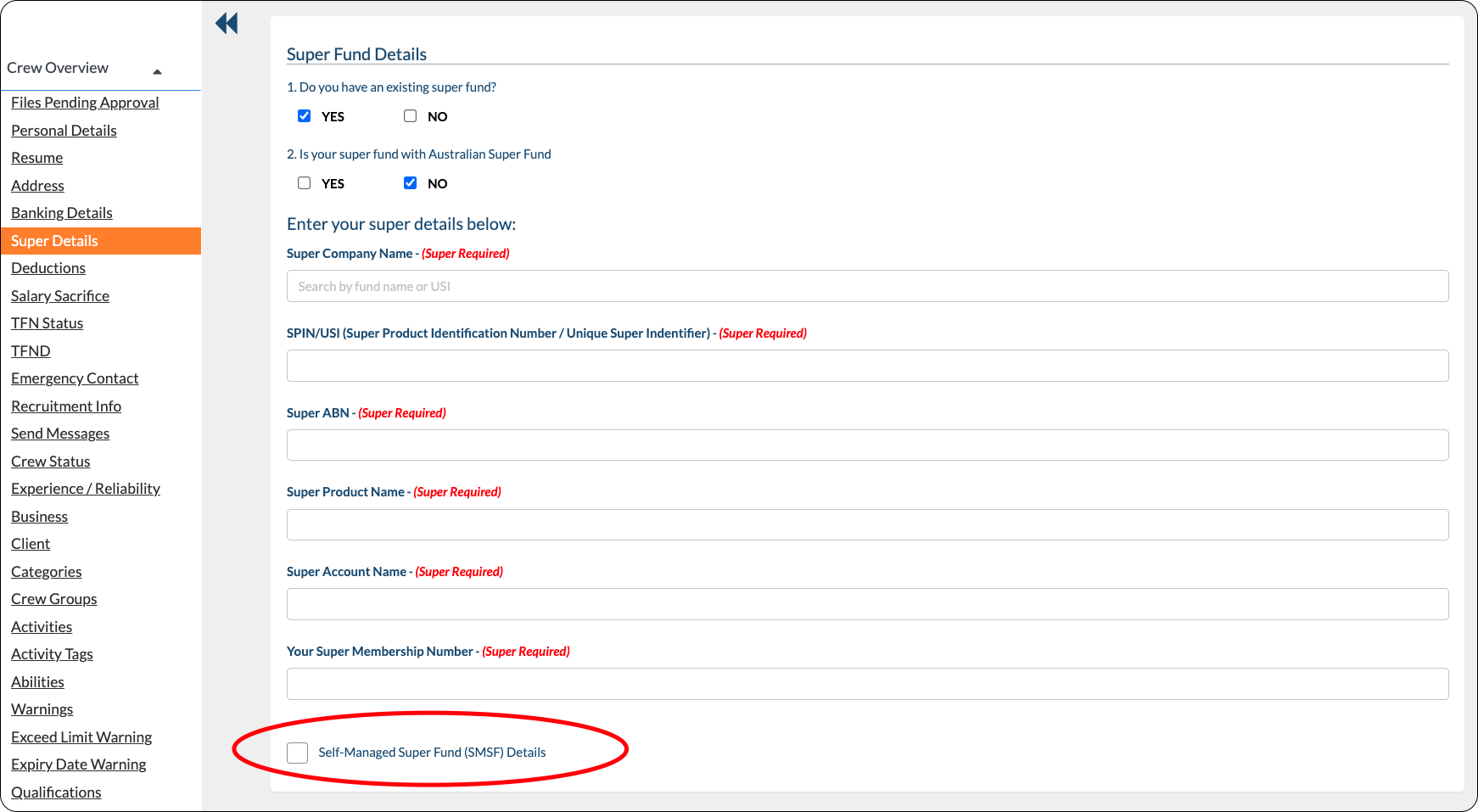
If an employee has an SMSF, they need to provide Admin with the details of their SMSF. Admin can then enter these details in the Crew Profile or Employees page.
SMSF fields are not visible on the Crew Portal.
How to Add Reimbursements?
Option 1 — Add Extra on the Jobsheet Page
On the Jobsheet page, click Add Extra, fill in the reimbursement details and click Save.


Option 2 — Add Reimbursement on the Payroll Page
You can also add a reimbursement using the Add Payment button on the Payroll List page.
Complete the Add Payment form and click Add. The reimbursement will then be reflected on the Payroll List page.


Option 3 — Add Reimbursement on the Direct Payment Page
Open Payment from the menu and select Add Payment.
Enter the reimbursement details and click Save. The reimbursement can also be viewed on the Direct Payments page.


No matching payroll FAQs found
Try a different search term.
Still have a payroll question?
Contact CrewCard Support for help with an existing payroll setup or view the main FAQ page for answers across the rest of CrewCard.