
Introducing CrewCard Telephony: Business Calling Inside CrewCard
CrewCard Telephony helps teams manage business calls without leaving the CrewCard Admin Portal. From confirming shifts to handling crew enquiries, it brings calling tools closer to daily operations.
With CrewCard Telephony, administrators and Duty Managers can make calls, manage staff extensions and review call history. They can also configure how incoming calls are handled.
What does CrewCard Telephony include?
Keep Workforce Communication Closer to Your Daily Operations
Calls are a regular part of managing casual staff. Operations teams often need to confirm availability, discuss job details or respond to last-minute changes.
However, switching between different tools can make it harder to keep track of previous conversations.
CrewCard Telephony brings calling tools into the Admin Portal. As a result, users can access telephone controls and relevant CrewCard information from one interface.
Make and Manage Calls with CrewCard Telephony
CrewCard Telephony includes an outgoing telephone keypad, contact search and call management controls.
First, users can search for a crew member or enter a telephone number. Then, during a connected call, they can use additional tools to manage the conversation.
Outgoing Calls
Search for a crew member, check their telephone number and make a call directly from the Portal.
Call Controls
Access options such as Transfer, Hold, Mute and End Call while managing a connected call.
Call Notes
Record details about a conversation. You can also select quick remarks such as Callback Needed or Resolved.
Crew Shortcuts
Access Search Shifts and Crew Profile from the call interface when handling a crew enquiry.
How CrewCard Telephony Works
You can open the Telephone interface using the telephone icon in the Admin Portal header.
Open Telephone
Click the Telephone icon. Then, start a voice session if prompted.
Choose a Contact
Search for a crew member or enter the number you want to call.
Manage the Call
Use the call controls, add notes and access crew details as needed.
Good to know: The Telephone interface includes an IVR Keypad (DTMF). This allows users to enter digits when calling automated telephone systems.
Review Call History and Follow Up
When several staff members are handling calls, previous call information can help with follow-ups.
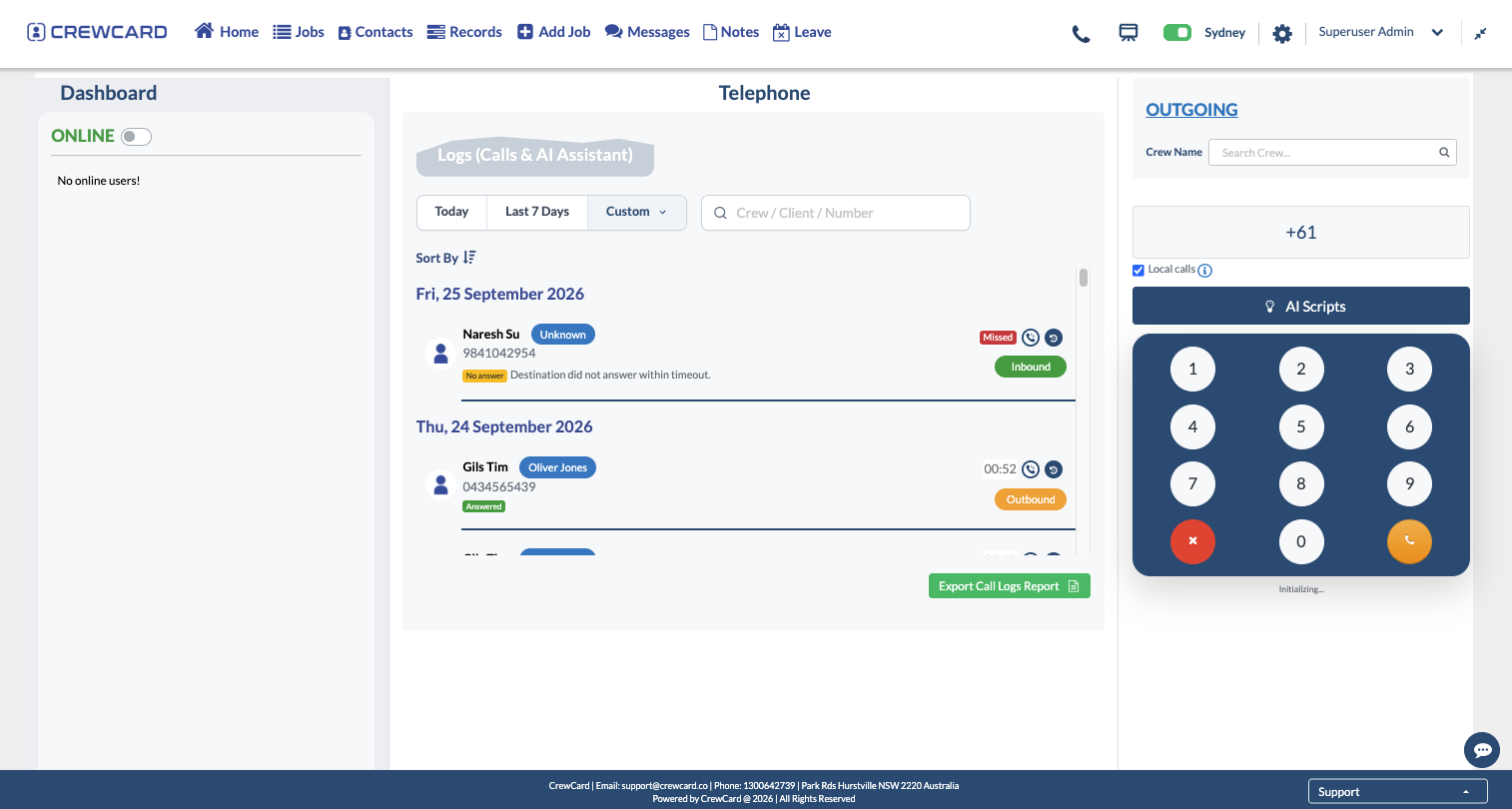
CrewCard includes a Logs (Calls & AI Assistant) section. Here, users can review incoming and outgoing call activity.
Filter by Today, Last 7 Days or a Custom date range. You can also search for a contact or telephone number.
View available information such as call direction, duration, status and related details.
Use Export Call Logs Report to export call history from the Telephone interface.
Where available, users can also review additional call details and AI Voice Agent conversation records.
Organise Duty Managers and Extensions
CrewCard Telephony also includes tools for managing internal telephone extensions.
Through the Directory, administrators can organise Duty Managers into groups. They can also manage extension assignments.
Extension Lines
Create extension lines and link them to a Duty Manager and group.
Duty Manager Groups
Organise staff into groups for client enquiries, crew support, recruitment or other calling needs.
In addition, administrators can configure Incoming Call Queue Transfer Access. This setting controls which Duty Managers can transfer waiting calls to selected Duty Managers.
Configure How Incoming Calls Are Handled
The Answering Service provides options for setting up incoming business calls.
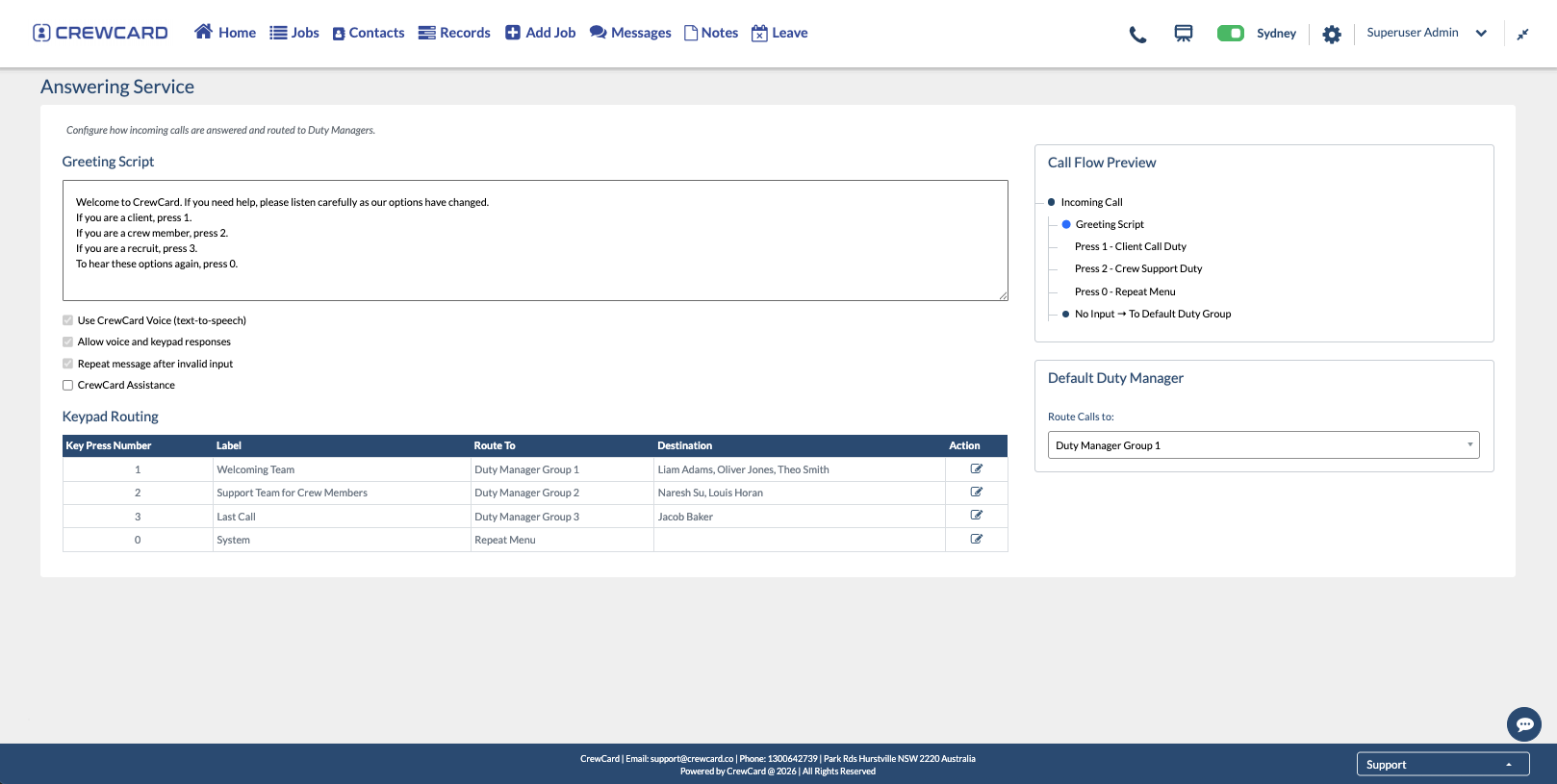
Administrators can create a greeting script, configure keypad routing and select a default Duty Manager Group.
Greeting Script
Set the message callers hear when they contact your business.
Keypad Routing
Configure where calls go when a caller selects a number from the menu.
Default Call Routing
Choose the Duty Manager Group used when no keypad input is received.
Call Flow Preview
Review how the greeting and routing options are organised.
Together, these settings help teams organise incoming calls around their communication needs.
More Telephony Features in Development
Additional features are being developed to extend CrewCard Telephony.
Telephone Credits
A calling credits system is being developed to let clients manage their telephone credit balance and purchase credits through CrewCard.
The final purchase process and credit management options will be confirmed before release.
AI Scripts
AI Scripts is a proposed feature for configuring what the AI Voice Agent says during calls.
If approved, administrators will be able to enable the feature through Advanced Settings.
Bring Calling and Workforce Management Closer Together
CrewCard Telephony brings business calling tools into the same Portal used for workforce management.
Operations teams can make calls, access crew information and review previous activity. They can also manage internal extensions without moving to a separate calling interface.
With call routing and Answering Service options, administrators have more control over how business enquiries are handled.
Learn How to Use CrewCard Telephony
Our CrewCard Telephony User Guide covers how to access the telephone system, make calls, manage extension groups, review call logs and configure the Answering Service.
View the Telephony User Guide →