
Introducing CrewCard AI Assistant: Ask Questions and Access Workforce Information
CrewCard AI Assistant gives administrators a new way to access workforce information. Instead of searching through multiple pages, users can ask questions directly from the CrewCard Dashboard.
With CrewCard AI Assistant, users can review previous questions, check AI activity and manage AI credits. They can also submit business-specific information through Train CrewCard AI.
What's included in CrewCard AI Assistant?
A New Way to Access Workforce Information
Managing a casual workforce involves checking rosters, shift records and staff activity. However, finding specific information can involve opening several pages.
The CrewCard AI Assistant offers another way to start. Administrators can type a question in plain English instead of navigating through different parts of the Portal.
The AI Assistant responds using the information and functions available to it. As a result, administrators have another way to find relevant workforce details during daily operations.
Explore the CrewCard AI Assistant Dashboard
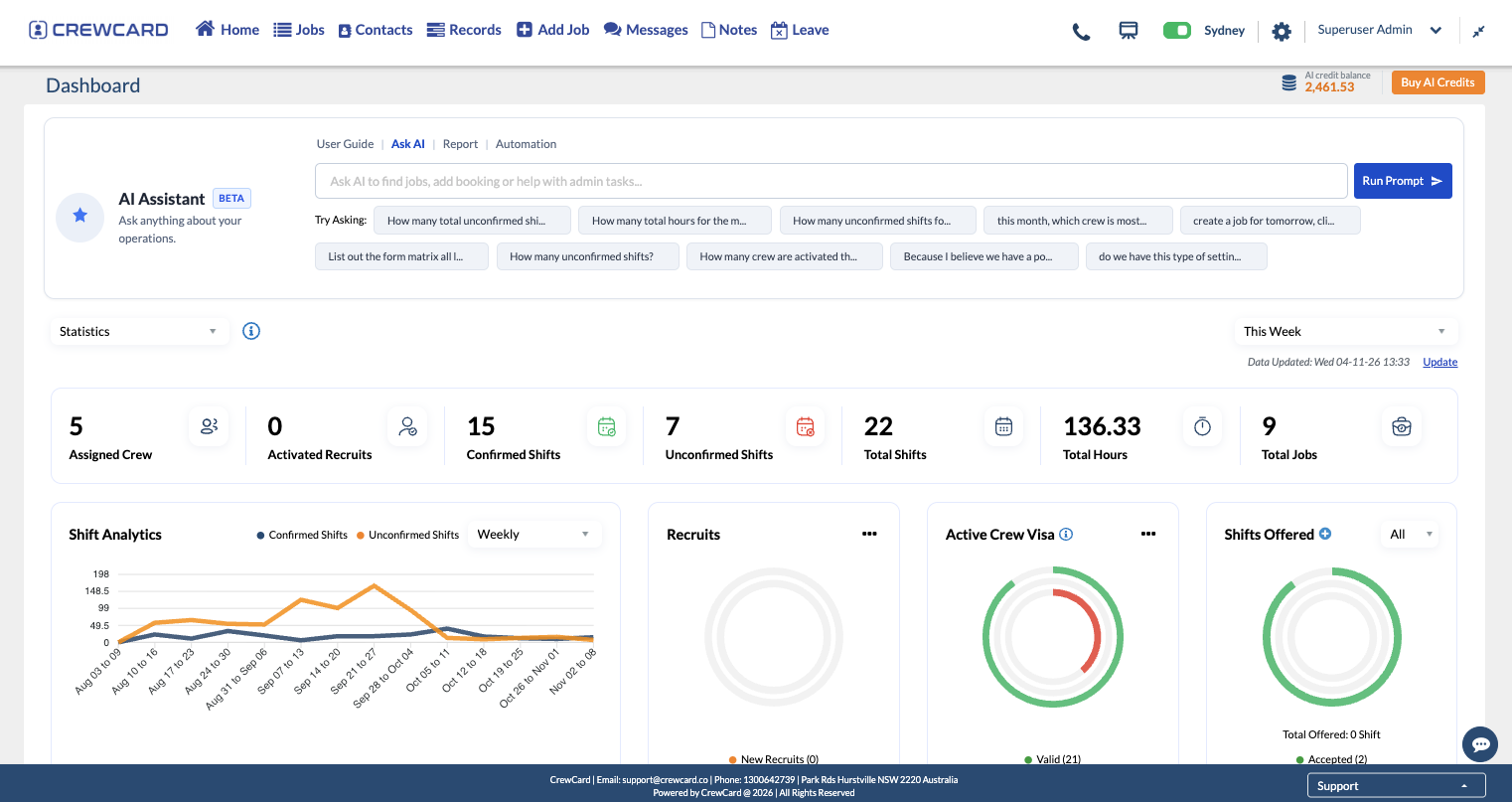
CrewCard AI Assistant is located near the top of the Dashboard. The interface includes four main tabs.
The Ask AI tab includes a prompt field and suggested questions. Meanwhile, the Report and Automation tabs provide additional entry points in the interface.
The functions available through these tabs depend on the features supported in your CrewCard Portal.
How to Ask CrewCard AI Assistant Questions
The Ask AI tab lets administrators submit questions and requests using natural language.
First, enter your question into the prompt field. Alternatively, select one of the suggested questions displayed below it.
How It Works
Enter a Question
Open Ask AI and type your question into the prompt field.
Run the Prompt
Click Run Prompt to submit the question.
Review the Answer
Read the AI response and check the details before acting on them.
You can also click + Show More to display additional suggested prompts when available.
Important: AI-generated answers should be checked before being used for payroll, scheduling, compliance or other important decisions.
Review CrewCard AI Assistant Activity
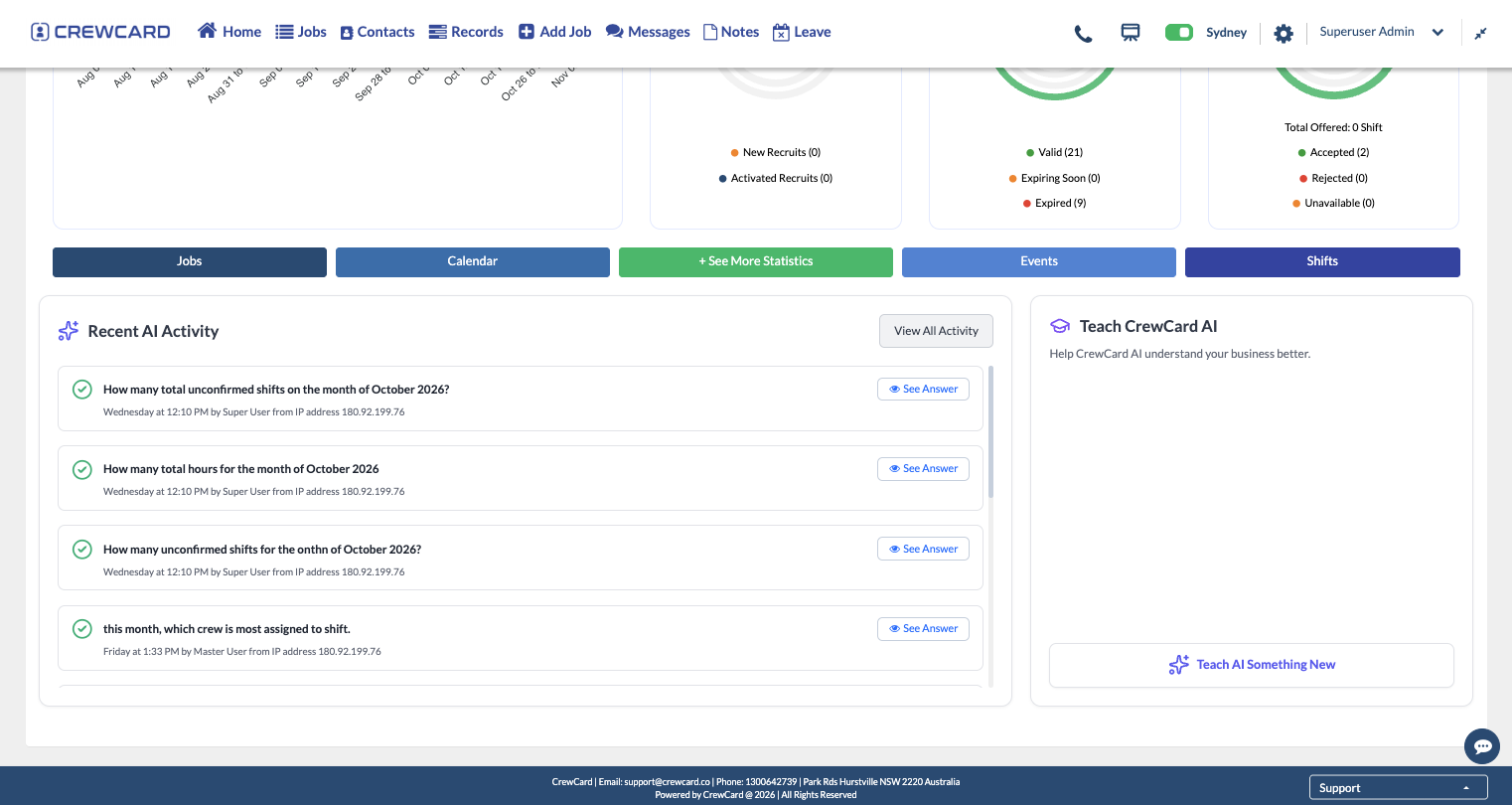
CrewCard AI Assistant includes a Recent AI Activity section on the Dashboard. Here, administrators can review previously submitted prompts and AI responses.
Each activity record can display the question, submission details and an option to view the answer.
Review recent questions submitted through the AI Assistant.
Expand an activity record to read the response. You can also copy it.
Access additional AI activity records beyond the Dashboard view.
Where available, click + See More to expand the Recent AI Activity section.
Manage AI Prompts in CrewCard
For more detailed information, administrators can open the Prompts page under the Agent menu.
This page includes search and filter options. For example, users can filter by prompt text, date range, user type, request type and status.
Prompt Records
View submitted prompts, AI responses, dates, users, request types and statuses.
Credit Cost
Review the credit cost shown alongside each recorded AI request.
The page also includes available actions such as Train AI and Delete.
Before deleting a prompt, users must confirm the action. Therefore, administrators should review the selected record carefully.
Manage CrewCard AI Credits and Usage
CrewCard AI Assistant requests use AI credits. Administrators can check their available balance from the Dashboard.
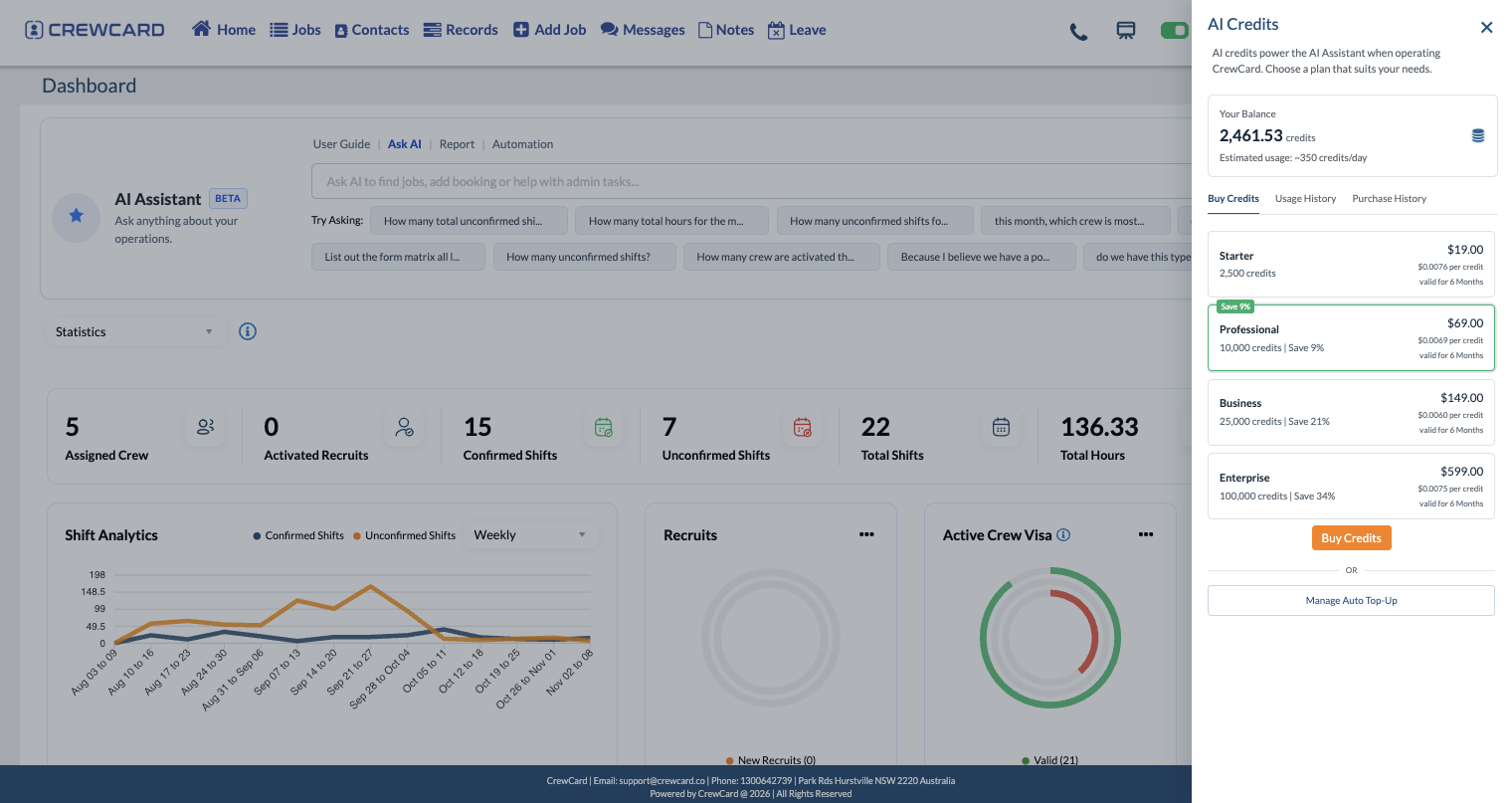
The AI Credits panel provides three sections for reviewing credit-related information.
Review the available credit packages and access purchasing options.
Review previous AI requests, token usage and credits consumed.
Access records of previous AI credit purchases.
To open the panel, click Buy AI Credits at the top-right of the Dashboard.
The panel also displays the available balance and estimated daily usage. In addition, users can review the credit packages displayed in the Portal.
The Buy Credits tab also provides access to Manage Auto Top-Up.
Train CrewCard AI Assistant with Business Information
Every business has different operating processes and requirements. Therefore, administrators may need to provide additional information relevant to their business.
The Train CrewCard AI feature allows administrators to submit business-specific rules and information.
On the Dashboard, the Teach CrewCard AI section appears beside Recent AI Activity.
Open Train AI
Click Teach AI Something New on the Dashboard.
Enter Information
Type the business rule or information you want to submit.
Submit Your Message
Click Send in the Train CrewCard AI pop-up.
For example, an administrator may provide information about an internal contact process or business rule.
However, submitting information does not guarantee that the AI will apply it to every future request. Supported functions and permissions still apply.
Explore Additional CrewCard AI Tools
The Dashboard also includes User Guide, Report and Automation tabs.
In addition, the Agent menu includes Workflows, Prompts and Automation.
These sections provide entry points for AI-related tools within CrewCard. However, some reporting and automation functions may not yet be available in the current Portal.
As additional features become available, the supported functions may change.
Use CrewCard AI Assistant in Daily Workforce Management
CrewCard AI Assistant brings AI-powered question and response tools into the Admin Portal.
Administrators can ask workforce questions, review previous prompts and monitor credit usage. They can also provide business-specific information through Train CrewCard AI.
Together, these features provide another way to access information and work with supported AI tools in CrewCard.
Learn How to Use CrewCard AI Assistant
Our CrewCard AI Assistant User Guide explains how to ask questions, review AI activity, manage credits and submit business information through Train CrewCard AI.
View the AI Assistant User Guide →