
Keep Every Shift, Message and Call Connected
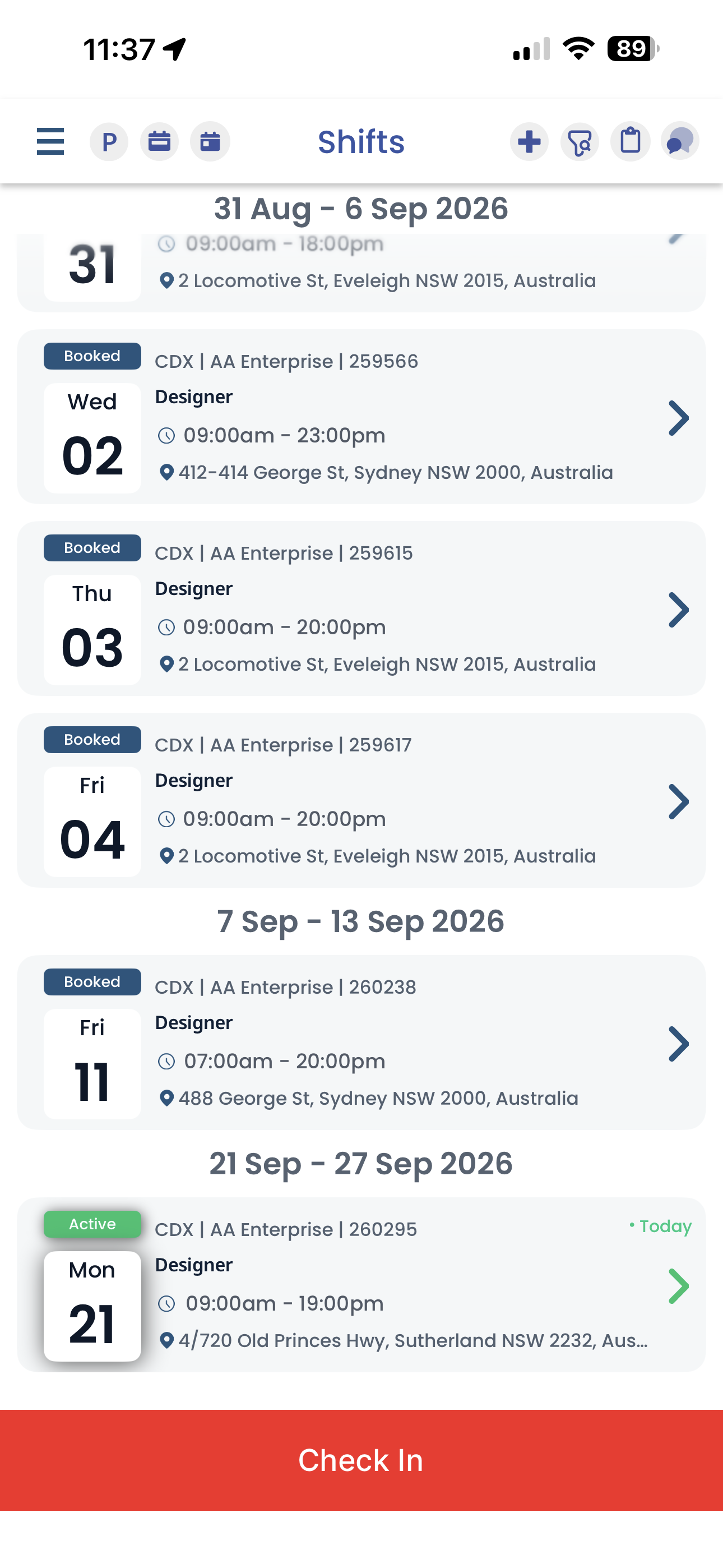
CrewCard’s Mobile Workforce App gives your casual workforce one place for shift information, team communication, timesheets and the details they need while they are working.
CrewCard keeps communication connected to the job so crew, supervisors, clients and operations teams can stay informed without relying on disconnected messages and manual follow-up.

Give Crew the Information They Need Without the Chasing
From accepting work to communicating with the team and submitting hours, the Mobile Workforce App keeps the day-to-day worker experience connected.

View & Accept Shifts
Crew can review offered work, shift times and job details directly from their mobile experience.
Access Job Details
Keep important venue, activity, task and shift information available to crew before and during the job.
Call Other Crew
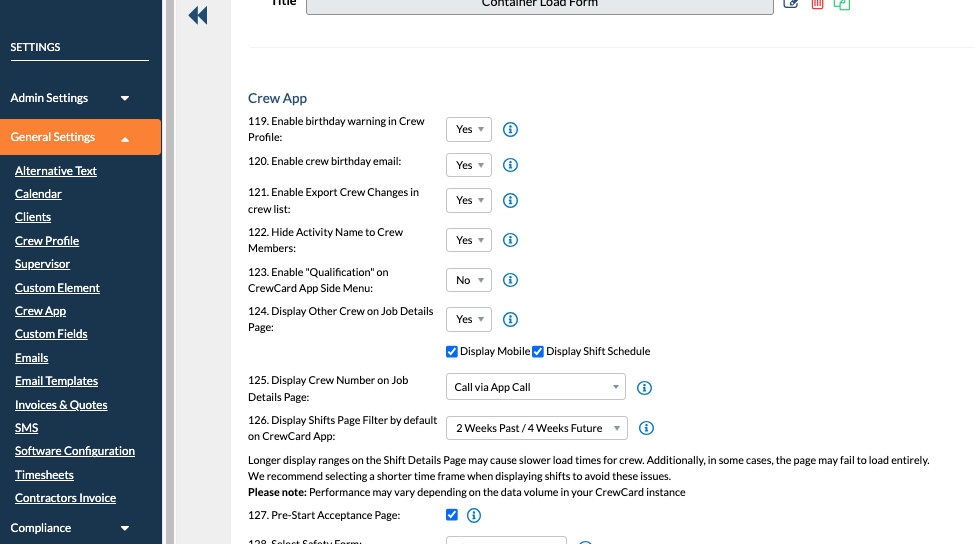
When enabled, crew can see other assigned team members and use the available contact options from Job Details.

Chat & Call Clients
Controlled crew-to-client communication can be enabled around the active shift window when operational contact is needed.
Submit Timesheets
Crew can record worked time and keep timesheet information connected with the shift that generated it.

Stay Updated
Give workers a clearer place to check current shift information instead of relying on separate message threads and spreadsheets.
Communication Opens When the Shift Needs It
Crew-to-client chat and calling can be switched on around the active job instead of remaining permanently available.
Get Ready
Crew can contact the client as the shift approaches when the communication setting is enabled.
Stay Connected
Operational questions, arrival information and job-related communication stay available while the team is working.
Close the Loop
The communication window remains available briefly after the shift before closing again.
Client communication is controlled through CrewCard settings and can remain disabled for businesses that do not want crew contacting clients directly.
Decide Who Can See and Contact Whom
CrewCard’s Mobile Workforce App gives operations teams control over how mobile communication works rather than applying one fixed rule to every business.
Keep the Office in Control of Communication Too
Mobile communication is only one part of the workflow. Operations teams can manage what happens when staff call, when someone is unavailable and when the office is closed.

Office Hours & Automatic Replies
Configure normal office hours and holidays so workers can receive an appropriate response when the operations team is unavailable.
Incoming Calls & Transfers
Incoming communication can be handled by the operations team, including routing and warm transfer workflows where configured.


From Shift Offer to Approved Hours
The mobile experience stays connected with the operational workflow rather than becoming another standalone communication tool.
Frequently Asked Questions
Can crew communicate with other crew through CrewCard?
Can crew contact clients through the CrewCard app?
Can administrators control mobile communication settings?
What happens when someone calls outside office hours?
Keep Your Workforce Connected From Anywhere
Shifts, communication, timesheets and worker information in one connected workforce platform.