
Introducing: View Total Shifts Feature
Managing Shifts just got easier!
With the new View Total Shifts feature, users can instantly see the total number of shifts based on their selected filters, helping streamline planning and reduce the need for manual checks.
Why does this matter?
When managing large volumes of shifts, manually reviewing and counting entries can be time-consuming and inefficient.
With the View Total Shifts feature, users can now instantly generate a summary of shifts based on their selected filters. This makes it easier to:
- Understand workload at a glance
- Plan staffing requirements more effectively
- Reduce manual checks and potential errors
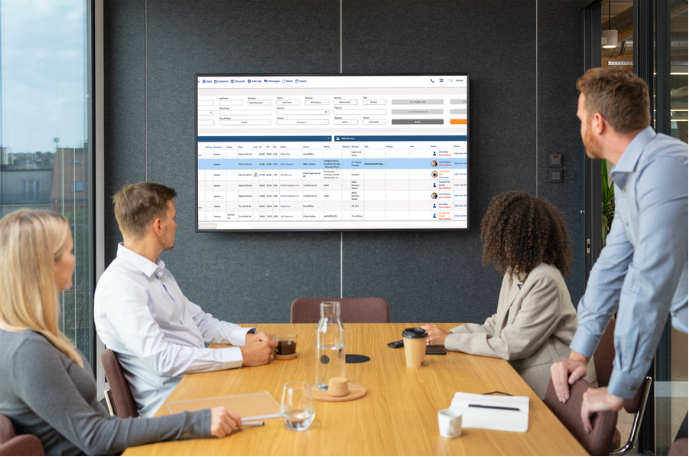
How does it work?
Using the feature is simple and integrates directly into your existing workflow.
- Navigate to the Shifts page
- Apply your desired search filters
- Select View Total Shifts from the options menu
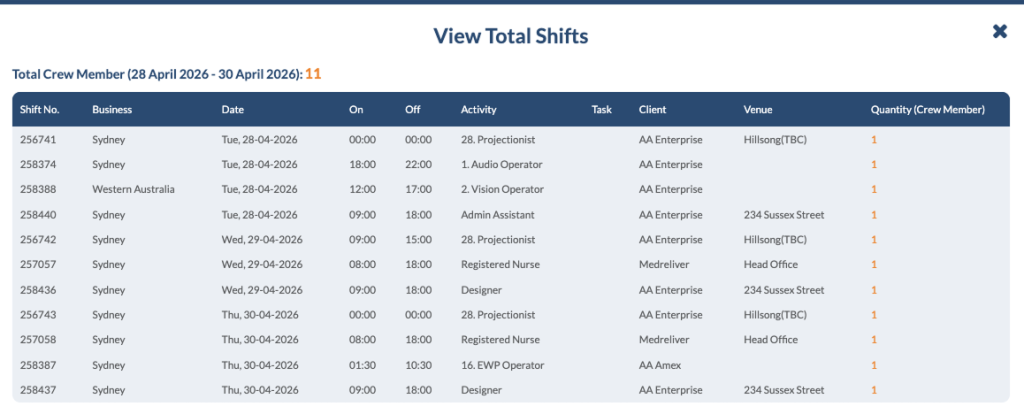
A pop-up will then display a structured summary of the filtered results, including key shift details such as shift number, business, date, activity and assigned crew.
What will you see?
The summary view provides a breakdown of important shift information, including:
- Shift details (Shift No, Date, Activity, Task)
- Business and client information
- Venue details
- Number of crew assigned per shift
In addition, the feature calculates and displays the total number of crew members based on the selected date range and applied filters.
Designed for efficiency
This update is designed to reduce the time spent navigating and reviewing shift data, giving users a faster and more streamlined way to access key information.
Whether you’re managing a small team or coordinating large-scale operations, having instant visibility over your shifts can make a significant difference in planning and execution.
Get started
The View Total Shifts feature is now available on the Shifts page.
If you’d like to learn more or see how CrewCard can support your workforce management, feel free to get in touch with our team.